Ever stared at your iPad, wondering precisely which model it is? Whether you're trying to snag the perfect accessory, troubleshoot a glitch, or prepare for an upgrade, decoding your iPad's model and serial numbers is the essential first step. These aren't just random strings of characters; they're the unique identifiers that unlock critical information about your device, ensuring you get the right support, the right parts, and the right accessories every single time. Without this knowledge, you're essentially navigating the vast Apple ecosystem blindfolded.
Let's cut through the confusion and demystify these important numbers.
At a Glance: Your Quick Guide to iPad Numbers
- Commercial Name: The friendly name you know (e.g., "iPad Air 5th Generation").
- Part Number: A detailed code for Apple's internal tracking (e.g., MYL92LL/A).
- Model Number (A####): The universal identifier for your iPad's core design and generation. Crucial for accessories.
- Serial Number: The unique fingerprint of your specific device, vital for warranty and support.
- Easiest Way to Find: Head to
Settings > General > Abouton your iPad. - Post-2021 Serial Numbers: No longer reveal manufacturing date; they are now randomized.
- Identifying Your Model from Serial Number: Use Apple's Check Coverage website, don't try to "decode" it directly.
- Why It Matters: Essential for accessories, repairs, software updates, and trade-in value.
The iPad's Secret Language: Understanding Each Identifier
Before we dive into how to find these numbers, let's understand what each one means. Think of them as different levels of identity, from your common name to your unique DNA.
1. The Commercial Name: Your iPad's Public Persona
This is the name everyone recognizes – "iPad Pro 12.9-inch (6th generation)," "iPad Air (5th generation)," or simply "iPad (10th generation)." It's the marketing label, typically highlighting the series, screen size, and generation. This name often comes with storage capacity details (e.g., "128GB" or "256GB") and sometimes connectivity (Wi-Fi only vs. Wi-Fi + Cellular).
While helpful for casual conversation, the commercial name alone isn't always precise enough for technical needs. For instance, several "iPad" models have been released across different generations, and "iPad Air" itself has seen multiple iterations.
2. The Part Number: Apple's Internal Blueprint
You might see this looking something like MYL92LL/A. The Part Number (sometimes called the SKU or order number) is a highly specific identifier Apple uses internally. It tells them not just the model and storage, but also the region of sale (e.g., "LL/A" usually denotes the US market), and any specific configuration details from a particular production lot.
You'll most commonly encounter the Part Number on your iPad's original packaging or within the Settings app, where it first appears as the "Model Number" before you tap it for more detail. It's too specific for most user purposes but offers a glimpse into Apple's granular tracking.
3. The Model Number (A####): The Universal Key to Compatibility
This is arguably the most crucial identifier for daily use and compatibility. The Model Number follows a distinct "A####" format (e.g., A2270, A2602, A2604). It’s a generic code that categorizes your iPad by its base model, series, and generation.
Think of it this way: the Model Number tells you the fundamental design of your iPad. This is what you'll need to know when buying a case, a screen protector, or determining which Apple Pencil version is compatible. It can also hint at whether your device is a Wi-Fi only or a Wi-Fi + Cellular variant within the same generation. However, it doesn't encode regional market data or other ultra-specific configurations like the Part Number does.
4. The Serial Number: Your iPad's Unique Fingerprint
The Serial Number is a unique alphanumeric code assigned to your specific device. It's like a VIN for your car or a social security number for an individual. For example, it might look like F9FDN4NKQ1GC. This number is paramount for:
- Warranty claims: Apple uses it to verify purchase and warranty status.
- Support inquiries: Helps technicians quickly identify your exact device and its history.
- Device recognition: Within your Apple ID account and Apple's service records.
- Security features: Like Activation Lock, which ties your device to your Apple ID.
Unlike the Model Number, which is shared by millions of identical iPads, your Serial Number is solely yours.
Where to Find Your iPad's Crucial Codes: A Step-by-Step Guide
Now that you know what each number is, let's find them. There are several reliable ways to retrieve this information, even if your iPad isn't cooperating.
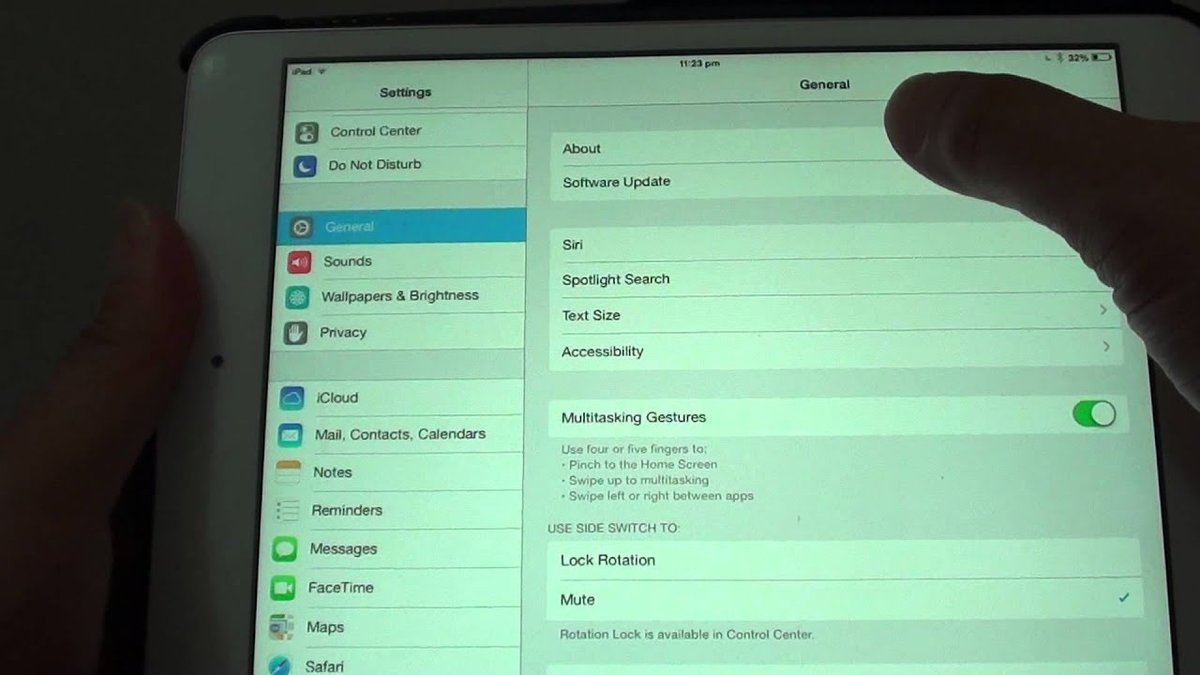
1. Your iPad's Settings App: The Easiest Way
This is your first stop and typically the quickest method.
- Open the Settings app on your iPad.
- Tap on General.
- Tap on About.
Here, you'll see a wealth of information including:
- Model Name: Your iPad's commercial name.
- Model Number: This will initially show the Part Number (e.g.,
MYL92LL/A). Tap on this string, and it will toggle to display the crucial "A####" Model Number. - Serial Number: Your device's unique identifier.
Keep tapping the model number field to switch between the Part Number and the Model Number (A####). This little trick is often overlooked but incredibly helpful.
2. On the Device Itself: Engravings and SIM Trays
Sometimes, your iPad isn't powered on, or you need to check details quickly. Look to the physical device.
- Back Cover: For many iPad models, both the Model Number (A####) and the Serial Number are laser-engraved in tiny print on the back casing, typically near the bottom. You might need good lighting and perhaps a magnifying glass to read them clearly.
- SIM Tray (Wi-Fi + Cellular models): If your iPad has cellular capabilities, the Serial Number is also often printed on the SIM tray itself. Eject the SIM tray, and check the underside.
These physical markings are particularly useful if your iPad won't turn on or if you've performed a factory reset and can't access settings.
3. The Original Box: A Treasure Trove of Information
If you still have the original packaging, it's a goldmine. The sticker on the box often lists:
- The Commercial Name (e.g., "iPad Air 5th Generation").
- Memory Capacity.
- The Part Number (e.g.,
MYL92LL/A). - The Model Number (A####).
- The Serial Number.
It's always a good idea to keep your original packaging, or at least take a photo of the label, for future reference.
4. Through Your Computer: Finder or iTunes
If your iPad is paired with a computer, you can find its details there.
- macOS Catalina (10.15) or Later (Finder):
- Connect your iPad to your Mac using a USB cable.
- Open Finder.
- In the Finder sidebar, under "Locations," select your iPad.
- In the main window, you'll see a "General" tab displaying device information.
- Clicking on the serial number here may cycle through additional details like the model number.
- macOS Mojave (10.14) or Earlier / Windows (iTunes):
- Connect your iPad to your computer.
- Open iTunes.
- Click the device icon that appears in the top-left corner (it looks like a small iPad).
- Navigate to the "Summary" page.
- Clicking on the Serial Number label on this page will often toggle between the Serial Number, Model Number (A####), and other identifiers.
This method is handy if your iPad screen is broken or if you're managing multiple devices through your computer.
5. Apple ID Account Page: When Your iPad Isn't Handy
If your iPad is linked to your Apple ID, you can retrieve its serial number even if you don't have the device physically with you.
- Go to appleid.apple.com in a web browser.
- Sign in with your Apple ID and password.
- Scroll down to the "Devices" section.
- Select your iPad from the list of devices.
The page will display your iPad's Serial Number. From there, you can use the Apple Support website (explained next) to get the full model details.
The Serial Number Story: What It Tells (and Doesn't Tell) You
The Serial Number is unique, but what does it mean? Its story has evolved over time.
Old School vs. New School: The Shift to Randomized Serial Numbers
For years, Apple's serial numbers were structured in a way that allowed savvy users to "decode" certain pieces of information. This isn't the case for newer devices.
- Pre-2021 Devices: For iPads manufactured before 2021, the serial number's structure could reveal details like the factory location (e.g., F9 for Foxconn), the assembly line, the year and even the week of manufacture, and sometimes even hints about the model identifier or color/connectivity variant. It was a fascinating, albeit complex, system for those who knew how to read it.
- Post-2021 Devices: Apple transitioned to randomized serial numbers for devices released since 2021. This means that for your newer iPad, the serial number no longer encodes the date of manufacture or other previously decipherable details. The primary purpose of these newer serial numbers is purely unique device identification.
So, if you have a recent iPad, don't waste time trying to break down its serial number for production info; you won't find it. To estimate the age of a post-2021 device, your best bet is to check the warranty start date on Apple’s support site, which usually aligns with the date of sale.
Unmasking Your iPad's True Model (Indirectly, But Reliably)
Given that modern serial numbers are randomized and even older ones didn't directly scream "iPad Air 3rd Gen," how do you use this unique code to identify your exact model? You do it indirectly, through Apple's official channels.
Your Best Bet: Apple's Check Coverage Website
This is the most accurate and reliable method to get a full model description from your serial number.
- Locate your iPad's Serial Number using any of the methods above.
- Go to Apple's official Check Coverage website (usually checkcoverage.apple.com).
- Enter your Serial Number into the designated field.
- Complete the captcha verification.
- Click "Continue."
The website will then display a detailed description of your iPad, often including its commercial name and specific model details (e.g., "iPad Pro 12.9-inch (6th generation)"). This description empowers you to then Identify your iPad's generation and cross-reference with official Apple documentation for the precise "A####" Model Number and its variants (e.g.,A2602for Wi-Fi,A2604for Wi-Fi + Cellular).
Pitfall Alert: Why Direct Serial Number Decoding for Model is a Trap
It’s impossible to directly identify the iPad model from its serial number structure alone. The serial number's job is to uniquely identify your specific unit, not to describe the general model. Any third-party website claiming to "decode" your serial number to tell you your model should be approached with extreme caution. These sites are often unreliable, can be outdated, and might even be phishing attempts. Stick to Apple's official website for accuracy and security.
Why These Numbers Truly Matter: Beyond Just Tech Specs
Knowing your iPad's model and serial numbers isn't just for tech enthusiasts; it's essential for practical reasons that impact your device's usability, longevity, and value.
1. Right Accessories, Every Time
This is perhaps the most immediate and common reason. An iPad Pro 11-inch (3rd generation) uses a different case and possibly a different Apple Pencil from an iPad Pro 11-inch (4th generation), despite their similar appearances. The Model Number (A####) is your compatibility guide for:
- Cases and Keyboard Cases: Designed to fit specific dimensions and button placements.
- Screen Protectors: Tailored for exact screen sizes and sensor cutouts.
- Apple Pencil: Determining if your iPad supports Apple Pencil 1st, 2nd, or USB-C.
- Hubs and Adapters: Ensuring port compatibility.
Avoiding incompatible accessories saves you money, frustration, and return trips.
2. Seamless Software Updates
While most iPads receive automatic updates, knowing your specific model allows you to confirm if your device is eligible for the latest iPadOS version. Older models eventually reach their end-of-life for software support, and understanding your iPad's generation helps you anticipate when that might happen.
3. Effortless Support & Troubleshooting
When you contact Apple Support, the first thing they'll ask for is your Serial Number. It allows them to pull up your device's exact specifications, warranty status, and service history instantly. This dramatically speeds up troubleshooting and ensures you receive accurate advice or repair options.
4. Smart Upgrades, Trades, and Sales
Whether you're looking to sell your old iPad, trade it in for a newer model, or buy a used one, accurately identifying the model is paramount. The specific generation and storage capacity heavily influence the device's market value. Misidentifying your iPad can lead to incorrect pricing or even legal disputes.
5. Precision Repairs
Should your iPad ever need repair, technicians rely on the exact Model Number and Serial Number to order the correct replacement parts. A slight variation between generations can mean completely different internal components. This ensures your repair is done right the first time.
6. App Compatibility Confidence
Some graphically intensive or feature-rich applications require specific hardware capabilities or newer iPadOS versions. Knowing your iPad's model helps you determine if it meets the requirements for the apps you want to use, preventing frustrating downloads that simply won't run.
Don't Get Tripped Up: Common Misconceptions & Best Practices
Identifying your iPad isn't complicated once you know where to look, but a few common misunderstandings can lead you astray.
"My iPad doesn't have a model number on the back!"
Many people miss the laser engraving because it's genuinely tiny. It's often printed in very fine, light grey text near the bottom edge of the back casing, right under the "iPad" branding or beneath other regulatory marks. It won't be a big, bold number; rather, a subtle Model A####. Give it a good look under bright light, and don't assume its absence just because you don't immediately see it.
"Can I trust third-party serial number checkers?"
As mentioned, exercise extreme caution. Websites not directly affiliated with Apple that offer to "decode" your serial number are often outdated or rely on guesswork, especially for post-2021 randomized serial numbers. Furthermore, entering your serial number into unverified sites can expose you to phishing scams or data harvesting. Always use Apple's official Check Coverage website for reliable information.
"What if my serial number is unreadable or faded?"
Physical markings can wear down over time. If the engraving on the back is illegible, don't fret. Use one of the other methods: check your iPad's Settings app, look at the original packaging, connect it to your computer (Finder/iTunes), or log into your Apple ID account page. There's almost always a backup way to find this crucial information.
Your iPad, Fully Understood: Next Steps
By now, you should be a pro at decoding your iPad's model and serial numbers. This seemingly minor detail is a powerful piece of information that puts you in control of your device's journey. From purchasing the perfect smart keyboard to ensuring your warranty is in check, understanding these identifiers is an investment in your iPad experience.
Take a moment right now to check your iPad's model and serial numbers using one of the reliable methods we've discussed. Write them down, snap a picture, or add them to a secure digital note. This small proactive step can save you significant time and hassle down the road, ensuring your iPad remains a seamless part of your digital life.